
The Alright Force
/Today I have a Toxic Force alternative to share with you that’s significantly better than the Toxic Force in almost every respect. (The only drawback is that you need to be using an iPhone.)
It has three significant advantages:
All the math is real. Spectators can follow along on their own phones or calculators.
The initial numbers are freely chosen, and the final number is apparently generated at random by the spectator.
Everything happens out in the open. The phone never needs to be turned over or hidden from view.
This comes from supporter Dave Mason, who built the web app and gave it to me to share with you today.
Here’s what it looks like: Your spectator performs a series of calculations on your phone. For the final one, they apparently enter a random number by drumming their fingers across the screen. When they press equals, the result is whatever force number you’ve set.
For example, you ask for a random number. The first spectator offers the number 69. You enter it in the calculator. You ask another spectator for a number to multiply it by. They also choose 69. Such clever spectators you’ve assembled. “Now let’s add a completely random number.” You have a spectator drum their fingers across the screen, apparently entering digits at random. When they press equals, the result is your force number—in this case, 123456789.
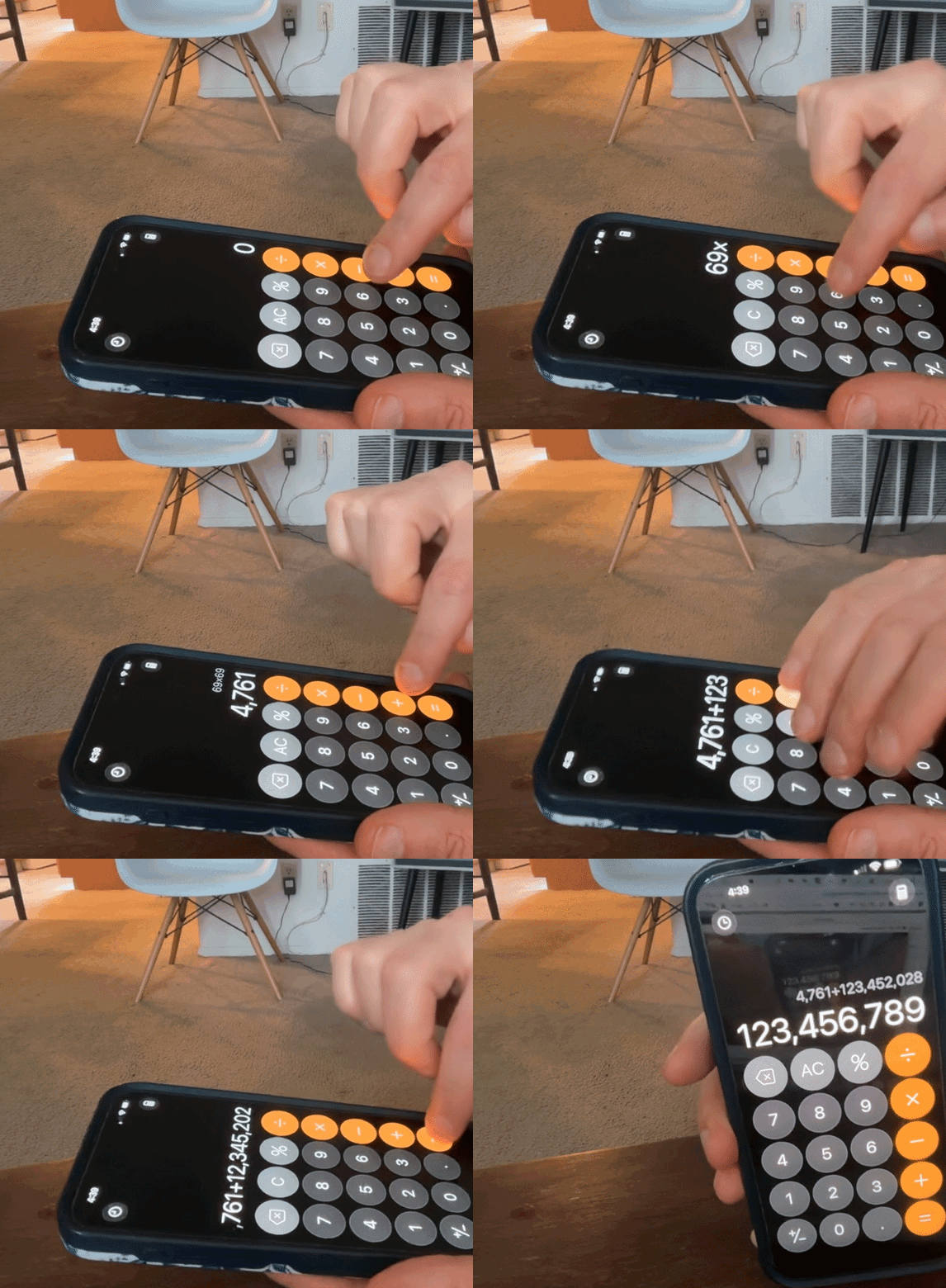
If you want, you can have one or more people follow along on their phones to confirm the total.
I call it the Alright Force because toxic things are bad, while alright things are, at minimum, alright. More importantly, Dave Mason of Traffic wrote “Feelin’ Alright”, and you don’t get many opportunities for that sort of naming synergy.
Instructions
[Note: This is designed for iPhone and has been successfully tested on an iPhone 14 Pro and an iPhone 15 Pro Max. It think itshould work on other modern iPhones as well, although it has not been tested. The code will be provided at the end for anyone who may need to make a modified version.]
Add CalcDM to Your iPhone
CalcDM doesn’t need to be downloaded from the App Store. You can add it directly to your Home Screen:
Open Safari on your iPhone.
Go to calcdm.com.
Tap the Share button—the square with an upward-pointing arrow.
Scroll down and tap Add to Home Screen.
Tap Add in the upper-right corner. (Keep Open as Web App on)
An icon will now appear on your Home Screen. It looks identical to the normal calculator icon. In the future, open the calculator by tapping that icon rather than returning to Safari.
Because the two icons look identical, put CalcDM somewhere you’ll remember—or move Apple’s Calculator app somewhere else—so you don’t open the wrong one during a performance.
Set the Force Number
Before performing:
Open CalcDM from your Home Screen.
Enter the number you want to force.
Press and hold the clock icon in the upper-left corner for about one second.
The calculator display will clear.
The clock hand will swing to the 9 o’clock position. This is your confirmation that the force number has been set.
The calculator is now ready to use normally.
If you need to confirm the force number later, press and hold the calculator icon in the upper-right corner. The stored number will be revealed so you can peek at it.
Perform the Force
1. Begin with ordinary calculations
Let the spectator enter numbers and perform calculations using addition, subtraction, multiplication, or division.
You’ll generally want to be careful with division here, as it’s likely to produce some decimal monstrosity you don’t really want to deal with. It will still work; it may just make things messier than necessary.
Continue until you’re ready for the final calculation that will produce your force number.
2. Choose the final operation
You can force the number using any of the four operators: addition, subtraction, multiplication, or division.
For the simplest handling:
If the current total is below your force number, use addition.
If the current total is above your force number, use subtraction.
2.5. Check the required number
This isn’t a necessary step—hence the .5—but it allows you to check whether a particular operation will produce a convenient number before you commit to it.
Press and hold the operator you’re considering. CalcDM will show you the exact number that would need to be entered with that operation to reach your force number.
For example, holding × will show the number by which the current total would need to be multiplied. This allows you to check whether the required number is a whole number, a decimal, or longer than you’d like.
Release the operator after checking it. Nothing has been armed yet.
3. Arm the force
When you’ve chosen your final operation, tap its operator twice in succession.
For example, tap + twice to arm an addition force.
The app automatically calculates the number required to bring the current total to your force number. You do not need to calculate anything yourself.
4. Have the spectator drum their fingers
Ask the spectator to drum their fingers across the face-up screen. Each tap secretly enters another digit of the required number.
Watch the clock icon as they tap. When all the necessary digits have been entered, the clock hand will move to the 6 o’clock position. This is your cue that the number is complete. At that point, have them stop tapping.
You don’t need to keep an eagle eye on the clock icon. It will likely be obvious when the entire number has been entered. The icon is just there so you can be sure.
If you’re worried they’ll notice that the digits appearing on the screen aren’t necessarily the ones beneath their fingers, I don’t think you have much to worry about. But to eliminate even that possibility, ask them to look into your eyes—or simply away from the calculator—as they drum.
5. Complete the calculation
Have the spectator press =.
The result will be your previously selected force number.
Because every previous calculation was legitimate, they can enter the same numbers into another calculator and confirm the final result for themselves.
Quick Performance Summary
Enter the force number.
Hold the clock icon to save it.
Perform any ordinary calculations.
Hold an operator if you want to preview the required final number.
Double-tap the operator you intend to use.
Have the spectator drum their fingers on the screen.
Wait for the clock hand to reach 6 o’clock.
Press = to reveal the force number.
CalcDM was created by Dave Mason and is available at calcdm.com. The source code is available on GitHub.